Keeps Growing!
Screenshots
See it in Action

HOME - SCREENSHOTS - HARDWARE - FAQ - DOCUMENTS
DOWNLOAD - CLIENTS - FUN USES - TESTING - DEVELOPMENT
MAIL - CREDITS - HISTORY - LINKS

- Screen Shots From LCDproc v0.3 -

LCDproc cycles through several screens of information. The screen order and display duration can be configured at run-time. Read the man page for more information. These screenshots were taken with an Olympus digital camera. We just ran the software, and snapped shots of the display when it was showing the different screens.

From version 0.3.4 on, LCDproc provides a "heartbeat" on all screens. This sits in the top-right corner, and "beats" every second, providing quick visual feedback if you just want to check that your system is still running.

These pictures are taken from version 0.3.4, but most client screens still look like this. If you want some other layout or want to display other info, you can write your own client. Before you start working on one right now, first have a look at the clients page. Maybe someone already wrote what you want!
- CPU Load Displays System CPU Utilization -
[CPU Load] The CPU Utilization screen displays the system's current CPU utilization. These values are the normal values reported by Linux. The percentage in the title bar is the sum of all non-idle cycles, and the bar graph at the bottom of the display reflects this percentage.
- Memory Usage Displays System Memory Utilization -
[Memory Usage] The Memory Utilization screen displays the system's memory utilization. It includes physical RAM as well as swap space (this conbines ALL swap partitions/files). This should be fairly self-explanatory.
- Filesystem Usage Displays Filesystem Utilization -
[Memory Usage] This screen identifies and lists all mounted partitions and displays their mountpoint, capacity, and used space. If more than three filesystems are mounted, this screen will scroll through them all.
- System Load Provides System Load History -
[System Load] The System Load screen looks rather like xload. The numbers on the right provide the scale being used. On the screen shot at left, the top value is 1, so the highest value the bars could reflect is 1. Hopefully this is pretty straightforward, too.
- Time Screen Displays OS/Kernel/Uptime/Date/Time/%Idle -
[Date & Time] This screen displays the system's uptime, the system's concept of the current time and date, the system's OS, the kernel version, and the amount of time spent idling since startup.
- Menu The LCDproc menu -
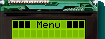
[Menu] From 0.4 on LCDproc has a menu. It is built into the server and you can pop it up with a keystroke on an active driver. To test this you can load the curses driver and use your keyboard as input. The screenshot here shows the menu of the 0.5 development version of LCDproc. It is slightly different from the 0.4 one. Sorry for the bad picture, my camera simply can't do better :(

If anyone can provide a better picture, I would be very happy. (Joris)


Created with PHP3
Copyright © 1998-2006 William W. Ferrell, Scott Scriven and many other contributors.